Tuesday, November 1, 2022

IoT based Smart Notice Board using Node MCU

 Circuit Diagram:


Program code:

#include <ESP8266WiFi.h>

#include <ESPAsyncTCP.h>

#include <ESPAsyncWebServer.h>

#include <SPI.h>

#include <Wire.h>

#include <Adafruit_GFX.h>

#include <Adafruit_SSD1306.h>


#define OLED_RESET LED_BUILTIN //4

Adafruit_SSD1306 display(OLED_RESET);


#define SSD1306_LCDHEIGHT 64 

#if (SSD1306_LCDHEIGHT != 64)

#error("Height incorrect, please fix Adafruit_SSD1306.h!");

#endif


AsyncWebServer server(80);


const char* ssid = "******"; //replace ssid and password with your wifi network credentials

const char* password = "*********";


const char* PARAM_INPUT_1 = "input1";


const char index_html[] PROGMEM = R"=====(

<!DOCTYPE HTML><html><head>

  <title>Smart Notice Board</title>

  <meta name="viewport" content="width=device-width, initial-scale=5">

<p> <font size="9" face="sans-serif"> <marquee> Smart Notice Board </marquee> </font> </p>

  </head><body><center>

  <form action="/get">

    Enter Text to Display: <input type="text" name="input1">

    <input type="submit" value="Send">

  </form><br>


</center></body></html>rawliteral";


void notFound(AsyncWebServerRequest *request) {

  request->send(404, "text/plain", "Not found");

)=====";


void setup() {


  Serial.begin(115200);

  display.begin(SSD1306_SWITCHCAPVCC, 0x3C);

  delay(2000);

  display.clearDisplay();

  display.setTextSize(1);

  display.setTextColor(WHITE);

  display.setCursor(0, 0);

  // Display static text

  display.println("Notice Board");

  display.display(); 

  delay(100);

  WiFi.mode(WIFI_STA);

  WiFi.begin(ssid, password);

  if (WiFi.waitForConnectResult() != WL_CONNECTED) {

    Serial.println("WiFi Failed!");

    return;

  }

  Serial.println();

  Serial.print("IP Address: ");

  Serial.println(WiFi.localIP());


  server.on("/", HTTP_GET, [](AsyncWebServerRequest *request){

    request->send_P(200, "text/html", index_html);

  });


  server.on("/get", HTTP_GET, [] (AsyncWebServerRequest *request) {

    String message;

    String inputParam;

    if (request->hasParam(PARAM_INPUT_1)) {

      message = request->getParam(PARAM_INPUT_1)->value();

      inputParam = PARAM_INPUT_1;

        display.clearDisplay();

      display.setTextSize(1);

     display.setTextColor(WHITE);

     display.setCursor(0, 24);

     display.println(message);

     display.display(); 

    }

    else {

      message = "No message sent";

      inputParam = "none";

    }

    Serial.println(message);


  request->send(200, "text/html", index_html);

  });

  server.begin();

}


void loop() {

    display.startscrollleft(0x00, 0x0F);

    delay(2000);

 }


Monday, October 31, 2022

Internet based Digital Clock using esp8266 and OLED display


Circuit Diagram


Program Code:

#include <ESP8266WiFi.h>

#include <time.h>


#include <SPI.h>

#include <Wire.h>

#include <Adafruit_GFX.h>

#include <Adafruit_SSD1306.h>


#define OLED_RESET LED_BUILTIN //4

Adafruit_SSD1306 display(OLED_RESET);


const char* ssid = "******";

const char* password = "*******";


int ledPin = 13;


int timezone = 5.5 * 3600;

int dst = 0;


#define SSD1306_LCDHEIGHT 64

#if (SSD1306_LCDHEIGHT != 64)

#error("Height incorrect, please fix Adafruit_SSD1306.h!");

#endif


void setup() {


display.begin(SSD1306_SWITCHCAPVCC, 0x3C);


// Clear the buffer.

display.clearDisplay();

display.display();


pinMode(ledPin,OUTPUT);

digitalWrite(ledPin,LOW);


Serial.begin(115200);


display.setTextSize(1);

display.setTextColor(WHITE);


display.setCursor(0,0);

display.println("Wifi connecting to ");

display.println( ssid );


WiFi.begin(ssid,password);


display.println("\nConnecting");


display.display();


while( WiFi.status() != WL_CONNECTED ){

delay(500);

display.print(".");

display.display();

}


// Clear the buffer.

display.clearDisplay();

display.display();

display.setCursor(0,0);


display.println("Wifi Connected!");

display.print("IP:");

display.println(WiFi.localIP() );


display.display();


configTime(timezone, dst, "pool.ntp.org","time.nist.gov");

display.println("\nWaiting for NTP...");


while(!time(nullptr)){

Serial.print("*");


delay(1000);

}

display.println("\nTime response....OK");

display.display();

delay(1000);


display.clearDisplay();

display.display();

}


void loop() {


time_t now = time(nullptr);

struct tm* p_tm = localtime(&now);


Serial.print(p_tm->tm_mday);

Serial.print("/");

Serial.print(p_tm->tm_mon + 1);

Serial.print("/");

Serial.print(p_tm->tm_year + 1900);


Serial.print(" ");


Serial.print(p_tm->tm_hour);

Serial.print(":");

Serial.print(p_tm->tm_min);

Serial.print(":");

Serial.println(p_tm->tm_sec);


// Clear the buffer.

display.clearDisplay();


display.setTextSize(3);

display.setTextColor(WHITE);


display.setCursor(0,0);

display.print(p_tm->tm_hour);

display.print(":");

if( p_tm->tm_min <10)

display.print("0");

display.print(p_tm->tm_min);


display.setTextSize(2);

display.setCursor(90,5);

display.print(".");

if( p_tm->tm_sec <10)

display.print("0");

display.print(p_tm->tm_sec);


display.setTextSize(1);

display.setCursor(0,40);

display.print(p_tm->tm_mday);

display.print("/");

display.print(p_tm->tm_mon + 1);

display.print("/");

display.print(p_tm->tm_year + 1900);


display.display();


delay(1000); // update every 1 sec


}


Internet based analog clock using OLED display and ESP8266


Circuit Diagram:


Program Code:

#include <ESP8266WiFi.h>

#include <time.h>


#include <SPI.h>

#include <Wire.h>

#include <Adafruit_GFX.h>

#include <Adafruit_SSD1306.h>


#define OLED_RESET LED_BUILTIN //4

Adafruit_SSD1306 display(OLED_RESET);


const char* ssid = "*******";

const char* password = "**********";


int ledPin = 13;


int timezone = 5.5 * 3600;

int dst = 0;

#define SSD1306_LCDHEIGHT 64 

#if (SSD1306_LCDHEIGHT != 64)

#error("Height incorrect, please fix Adafruit_SSD1306.h!");

#endif


void setup() {


display.begin(SSD1306_SWITCHCAPVCC, 0x3C);


// Clear the buffer.

display.clearDisplay();

display.display();


pinMode(ledPin,OUTPUT);

digitalWrite(ledPin,LOW);


Serial.begin(115200);


display.setTextSize(1);

display.setTextColor(WHITE);


display.setCursor(0,0);

display.println("Wifi connecting to ");

display.println( ssid );


WiFi.begin(ssid,password);


display.println("\nConnecting");


display.display();


while( WiFi.status() != WL_CONNECTED ){

delay(500);

display.print(".");

display.display();

}


// Clear the buffer.

display.clearDisplay();

display.display();

display.setCursor(0,0);


display.println("Wifi Connected!");

display.print("IP:");

display.println(WiFi.localIP() );


display.display();


configTime(timezone, dst, "pool.ntp.org","time.nist.gov");

display.println("\nWaiting for NTP...");


while(!time(nullptr)){

Serial.print("*");


delay(1000);

}

display.println("\nTime response....OK");

display.display();

delay(1000);


display.clearDisplay();

display.display();

}


void loop() {


time_t now = time(nullptr);

struct tm* p_tm = localtime(&now);

int r = 35;

// Now draw the clock face


display.drawCircle(display.width()/2, display.height()/2, 2, WHITE);

//

//hour ticks

for( int z=0; z < 360;z= z + 30 ){

//Begin at 0° and stop at 360°

float angle = z ;


angle=(angle/57.29577951) ; //Convert degrees to radians

int x2=(64+(sin(angle)*r));

int y2=(32-(cos(angle)*r));

int x3=(64+(sin(angle)*(r-5)));

int y3=(32-(cos(angle)*(r-5)));

display.drawLine(x2,y2,x3,y3,WHITE);

}

// display second hand

float angle = p_tm->tm_sec*6 ;

angle=(angle/57.29577951) ; //Convert degrees to radians

int x3=(64+(sin(angle)*(r)));

int y3=(32-(cos(angle)*(r)));

display.drawLine(64,32,x3,y3,WHITE);

//

// display minute hand

angle = p_tm->tm_min * 6 ;

angle=(angle/57.29577951) ; //Convert degrees to radians

x3=(64+(sin(angle)*(r-3)));

y3=(32-(cos(angle)*(r-3)));

display.drawLine(64,32,x3,y3,WHITE);

//

// display hour hand

angle = p_tm->tm_hour * 30 + int((p_tm->tm_min / 12) * 6 );

angle=(angle/57.29577951) ; //Convert degrees to radians

x3=(64+(sin(angle)*(r-11)));

y3=(32-(cos(angle)*(r-11)));

display.drawLine(64,32,x3,y3,WHITE);


display.setTextSize(1);

display.setCursor((display.width()/2)+10,(display.height()/2) - 3);

display.print(p_tm->tm_mday);


// update display with all data

display.display();

delay(100);

display.clearDisplay();


}


Wednesday, October 26, 2022

LED 8X8 Matrix interface with Arduino Uno


Circuit Diagram


Program Code

#include "LedControl.h"

#include "binary.h"


/*

 DIN connects to pin 12

 CLK connects to pin 11

 CS connects to pin 10 

*/

LedControl lc=LedControl(12,11,10,1);


// delay time between faces

unsigned long delaytime=1000;


// happy face

byte hf[8]= {B00111100,B01000010,B10100101,B10000001,B10100101,B10011001,B01000010,B00111100};

// neutral face

byte nf[8]={B00111100, B01000010,B10100101,B10000001,B10111101,B10000001,B01000010,B00111100};

// sad face

byte sf[8]= {B00111100,B01000010,B10100101,B10000001,B10011001,B10100101,B01000010,B00111100};


void setup() {

  lc.shutdown(0,false);

  // Set brightness to a medium value

  lc.setIntensity(0,8);

  // Clear the display

  lc.clearDisplay(0);  

}


void drawFaces(){

  // Display sad face

  lc.setRow(0,0,sf[0]);

  lc.setRow(0,1,sf[1]);

  lc.setRow(0,2,sf[2]);

  lc.setRow(0,3,sf[3]);

  lc.setRow(0,4,sf[4]);

  lc.setRow(0,5,sf[5]);

  lc.setRow(0,6,sf[6]);

  lc.setRow(0,7,sf[7]);

  delay(delaytime);


  // Display neutral face

  lc.setRow(0,0,nf[0]);

  lc.setRow(0,1,nf[1]);

  lc.setRow(0,2,nf[2]);

  lc.setRow(0,3,nf[3]);

  lc.setRow(0,4,nf[4]);

  lc.setRow(0,5,nf[5]);

  lc.setRow(0,6,nf[6]);

  lc.setRow(0,7,nf[7]);

  delay(delaytime);


  // Display happy face

  lc.setRow(0,0,hf[0]);

  lc.setRow(0,1,hf[1]);

  lc.setRow(0,2,hf[2]);

  lc.setRow(0,3,hf[3]);

  lc.setRow(0,4,hf[4]);

  lc.setRow(0,5,hf[5]);

  lc.setRow(0,6,hf[6]);

  lc.setRow(0,7,hf[7]);

  delay(delaytime);

}


void loop(){

  drawFaces();

}


Tuesday, October 18, 2022

Node MCU with Blynk IOT to calculate distance using ultrsonic sensor


Circuit Diagram:


Program Code:

#define BLYNK_PRINT Serial

#include <ESP8266WiFi.h>

#include <BlynkSimpleEsp8266.h>


#define  trig  D2

#define  echo  D1


long duration;

int distance;


#define BLYNK_TEMPLATE_ID "**********"

#define BLYNK_DEVICE_NAME "************"

#define BLYNK_AUTH_TOKEN "*******************"

char auth[] = BLYNK_AUTH_TOKEN;         // You should get Auth Token in the Blynk App.

char ssid[] = "******";   //Enter your WIFI name

char pass[] = "********";   //Enter your WIFI password

BlynkTimer timer;

WidgetLCD lcd(V1);

void setup()

{

  // Debug console

  pinMode(trig, OUTPUT);  // Sets the trigPin as an Output

  pinMode(echo, INPUT);   // Sets the echoPin as an Inpu

  Serial.begin(9600);

  Blynk.begin(auth, ssid, pass, "blynk.cloud", 80);

  timer.setInterval(1000L, sendSensor);

}


void loop()

{

  Blynk.run();

  timer.run();

}

void sendSensor()

{

  digitalWrite(trig, LOW);   // Makes trigPin low

  delayMicroseconds(2);       // 2 micro second delay


  digitalWrite(trig, HIGH);  // tigPin high

  delayMicroseconds(10);      // trigPin high for 10 micro seconds

  digitalWrite(trig, LOW);   // trigPin low


  duration = pulseIn(echo, HIGH);   //Read echo pin, time in microseconds

  distance = duration * 0.034 / 2;   //Calculating actual/real distance


  Serial.print("Distance = ");        //Output distance on arduino serial monitor

  Serial.println(distance);


  Blynk.virtualWrite(V0, distance);


  lcd.print(0, 0, "trendy_coding"); // use: (position X: 0-15, position Y: 0-1, "Message you want to print")

  lcd.print(0, 1, "Distance: " + String(distance) + "cm  ");

  delay(1000); 


}


Breath analyzer using Arduino and Alcohol Sensor


Circuit Diagram


Program Code:


#include <SPI.h>

#include <Wire.h>

#include <Adafruit_GFX.h>

#include <Adafruit_SSD1306.h>

#define OLED_RESET 4 // Define the OLED screen

int TIME_UNTIL_WARMUP = 4; // Time for the warm-up delay in minutes


int analogPin = 0; // Set analog pin as A0

int val = 0; // Set a value to read from the analog pin

Adafruit_SSD1306 display(OLED_RESET);

void setup() { // Set up the OLED screen

  display.begin(SSD1306_SWITCHCAPVCC, 0x3C);

  display.clearDisplay();

}

void loop() { // Take the reading and show it onscreen


  unsigned long time;

  delay(100);

  val = readAlcohol();

  printTitle();

  printWarming();

  time = millis() / 1000;

  time /= 60;

  if (time <= TIME_UNTIL_WARMUP) { // If warm-up is less than 4 minutes

    time = map(time, 0, TIME_UNTIL_WARMUP, 0, 100); // Show countdown

    display.drawRect(10, 50, 110, 10, WHITE); //Empty Bar

    display.fillRect(10, 50, time, 10, WHITE);

  } else // When warm-up time has passed

    // the value and message are printed on the screen

  {

    printTitle();

    printAlcohol(val);

    printAlcoholLevel(val);

  }

  display.display();

}

void printTitle() { // Position and text of title on the screen

  display.clearDisplay();

  display.setTextSize(1);

  display.setTextColor(WHITE);

  display.setCursor(22, 0);

  display.println("Breath Analyzer");

}

void printWarming() { // Warm-up message

  display.setTextSize(1);

  display.setTextColor(WHITE);

  display.setCursor(30, 24);

  display.println("Warming up");

}

void printAlcohol(int value) { // Print alcohol value to screen

  display.setTextSize(2);

  display.setTextColor(WHITE);

  display.setCursor(50, 10);

  display.println(val);

}

void printAlcoholLevel(int value) { // Print message to screen

  display.setTextSize(1);

  display.setTextColor(WHITE);

  display.setCursor(20, 25);

  if (value < 200) { // If value read is less than 200, you are sober

    display.println("You are sober...");

  }

  if (value >= 200 && value < 280) { // If value read is between 200

    // and 280, print "You had a beer?"

    display.println("You are normal");

  }

  if (value >= 280 && value < 350) {

    display.println("You are Good");

  }

  if (value >= 350 && value < 450) {

    display.println("I smell VODKA!");

  }

  if (value > 450) {

    display.println("You are drunk!");

  }

}

// Finds average by summing 3 readings and dividing by 3

// for better accuracy

int readAlcohol() {

  int val = 0;

  int val1;

  int val2;

  int val3;

  display.clearDisplay();

  val1 = analogRead(analogPin);

  delay(10);

  val2 = analogRead(analogPin);

  delay(10);

  val3 = analogRead(analogPin);

  val = (val1 + val2 + val3) / 3;

  return val;

}


Monday, October 17, 2022

Node red with ESP8266 to display DHT sensor


Circuit Diagram


Program Code:


#include <ESP8266WiFi.h>

#include <DHT.h>

#include <WiFiClient.h>

#include <ESP8266WebServer.h>

#include <ESP8266mDNS.h>


/************************* Pin Definition *********************************/


//DHT11 for reading temperature and humidity value

#define DHTPIN            D7

String temp;

String hum;

#define DHTTYPE DHT11     // DHT 11

DHT dht(DHTPIN, DHTTYPE);


// Your WiFi credentials.

// Set password to "" for open networks.

const char* ssid = "*******";

const char* password = "*******";


ESP8266WebServer server(80);


void handleRoot() {


  server.send(200, "text/plain", "hello from esp8266!");


}


void handleNotFound() {


  String message = "File Not Found\n\n";

  message += "URI: ";

  message += server.uri();

  message += "\nMethod: ";

  message += (server.method() == HTTP_GET) ? "GET" : "POST";

  message += "\nArguments: ";

  message += server.args();

  message += "\n";

  for (uint8_t i = 0; i < server.args(); i++) {

    message += " " + server.argName(i) + ": " + server.arg(i) + "\n";

  }

  server.send(404, "text/plain", message);


}


void setup()

{

  // Debug console

  Serial.begin(115200);

  WiFi.begin(ssid, password);

  Serial.println("");


  // Wait for connection

  while (WiFi.status() != WL_CONNECTED) {

    delay(500);

    Serial.print(".");

  }

  Serial.println("");

  Serial.print("Connected to ");

  Serial.println(ssid);

  Serial.print("IP address: ");

  Serial.println(WiFi.localIP());

  dht.begin();

  server.on("/", handleRoot); // http://localIPAddress/

  server.on("/dht-temp", []() // http://localIPAddress/dht-temp

  {

    int t = dht.readTemperature();

    temp = String(t);

    server.send(200, "text/plain", temp);

  });


  server.on("/dht-hum", []()  // http://localIPAddress/dht-hum

  {

    int h = dht.readHumidity();

    hum = String(h);

    server.send(200, "text/plain", hum);

  });

   server.onNotFound(handleNotFound);

  server.begin();

  Serial.println("HTTP server started");

}


void loop()

{

  server.handleClient();

}


Node-red JSON file

[

    {

        "id": "64f52903c284b545",

        "type": "tab",

        "label": "Flow 1",

        "disabled": false,

        "info": ""

    },

    {

        "id": "30a7782ba04b1a60",

        "type": "ui_gauge",

        "z": "64f52903c284b545",

        "name": "",

        "group": "a7841362.ae40c",

        "order": 1,

        "width": 0,

        "height": 0,

        "gtype": "gage",

        "title": "Temperature Data",

        "label": "deg C",

        "format": "{{value}}",

        "min": 0,

        "max": "100",

        "colors": [

            "#00b500",

            "#e6e600",

            "#ca3838"

        ],

        "seg1": "",

        "seg2": "",

        "className": "",

        "x": 490,

        "y": 480,

        "wires": []

    },

    {

        "id": "e6a00cc180f7067b",

        "type": "http request",

        "z": "64f52903c284b545",

        "name": "",

        "method": "GET",

        "ret": "txt",

        "paytoqs": "ignore",

        "url": "192.168.43.243/dht-temp",

        "tls": "",

        "persist": false,

        "proxy": "",

        "authType": "",

        "senderr": false,

        "x": 300,

        "y": 480,

        "wires": [

            [

                "30a7782ba04b1a60"

            ]

        ]

    },

    {

        "id": "691c4dc63f202da8",

        "type": "inject",

        "z": "64f52903c284b545",

        "name": "",

        "props": [

            {

                "p": "payload"

            },

            {

                "p": "topic",

                "vt": "str"

            }

        ],

        "repeat": "3",

        "crontab": "",

        "once": false,

        "onceDelay": 0.1,

        "topic": "",

        "payload": "",

        "payloadType": "date",

        "x": 130,

        "y": 480,

        "wires": [

            [

                "e6a00cc180f7067b"

            ]

        ]

    },

    {

        "id": "48feb7d8a567f7a7",

        "type": "ui_gauge",

        "z": "64f52903c284b545",

        "name": "",

        "group": "a7841362.ae40c",

        "order": 1,

        "width": 0,

        "height": 0,

        "gtype": "gage",

        "title": "Humidity Data",

        "label": "%",

        "format": "{{value}}",

        "min": 0,

        "max": "100",

        "colors": [

            "#00b500",

            "#e6e600",

            "#ca3838"

        ],

        "seg1": "",

        "seg2": "",

        "className": "",

        "x": 1040,

        "y": 420,

        "wires": []

    },

    {

        "id": "3392fb2a675e207b",

        "type": "http request",

        "z": "64f52903c284b545",

        "name": "",

        "method": "GET",

        "ret": "txt",

        "paytoqs": "ignore",

        "url": "192.168.43.243/dht-hum",

        "tls": "",

        "persist": false,

        "proxy": "",

        "authType": "",

        "senderr": false,

        "x": 850,

        "y": 420,

        "wires": [

            [

                "48feb7d8a567f7a7"

            ]

        ]

    },

    {

        "id": "60b07f05b391fec5",

        "type": "inject",

        "z": "64f52903c284b545",

        "name": "",

        "props": [

            {

                "p": "payload"

            },

            {

                "p": "topic",

                "vt": "str"

            }

        ],

        "repeat": "5",

        "crontab": "",

        "once": false,

        "onceDelay": 0.1,

        "topic": "",

        "payload": "",

        "payloadType": "date",

        "x": 670,

        "y": 420,

        "wires": [

            [

                "3392fb2a675e207b"

            ]

        ]

    },

    {

        "id": "a7841362.ae40c",

        "type": "ui_group",

        "name": "My studio",

        "tab": "2ff36ff5.bdc628",

        "order": 1,

        "disp": true,

        "width": "6",

        "collapse": false

    },

    {

        "id": "2ff36ff5.bdc628",

        "type": "ui_tab",

        "name": "Studio_control",

        "icon": "dashboard",

        "disabled": false,

        "hidden": false

    }

]

Sunday, October 16, 2022

People Counter using Arduino and Ultrasonic Sensor


Circuit Diagram:


Program Code:

#include <LiquidCrystal_I2C.h> // Call on the libraries

#include <NewPing.h>

#include <Wire.h>

#define TRIGGER_PIN 7 // Ultrasonic sensor trig to Arduino pin 7

#define ECHO_PIN 8 // Ultrasonic sensor echo to Arduino pin 8

#define MAX_DISTANCE 200

NewPing sonar(TRIGGER_PIN, ECHO_PIN, MAX_DISTANCE);

int LEDPin = 13; // Set LED to pin 13

int distance; // Variable for distance

int people = 0; // Variable for number of people

boolean count = false; // State for counting

LiquidCrystal_I2C lcd(0x20, 16, 2);

void setup() { // Run once to set up the LCD screen and LED

lcd.begin();

lcd.backlight();

pinMode(LEDPin, OUTPUT); // Set the LED as an output

lcd.print("People:"); // Print People: to the LCD screen

}

void loop() { // This loops forever to check for number of people

delay(50);

distance = sonar.ping_cm(); // Ping every 50 milliseconds

// If more than 100 cm away, don't count

if (distance > 100 && count) {

count = false;

digitalWrite(LEDPin, LOW);

}

// If less than 100 cm away, count 1

if (distance < 100 && distance != 0 && !count) {

count = true;

people ++; // Keep adding 1 per count

digitalWrite(LEDPin, HIGH);

lcd.setCursor(10, 0);

lcd.print(people); // Print number of people to LCD screen

}

}

Friday, October 14, 2022

Range Finder using Ultra Sonic Sensor and Arduino uno


Circuit Diagram 

Program Code

#include <LiquidCrystal.h>
LiquidCrystal lcd(11, 10, 9, 7, 6, 5, 4);
int pingPin = 13;
int inPin = 12;
int duration,inches,cm;
void setup() {
Serial.begin(9600);
lcd.begin(16, 2);
lcd.print("testing...");
}
void loop() {
// Establish variables for duration of the ping,
// and the distance result in inches and centimeters:
// long duration, inches, cm;
// The PING))) is triggered by a HIGH pulse of 2 ms or more
// Give a short LOW pulse beforehand to ensure a clean HIGH pulse:
pinMode(pingPin, OUTPUT);
digitalWrite(pingPin, LOW);
delayMicroseconds(2);
digitalWrite(pingPin, HIGH);
delayMicroseconds(10);
digitalWrite(pingPin, LOW);
// The same pin is used to read the signal from the PING))):
// a HIGH pulse whose duration is the time (in microseconds)
// from the sending of the ping to the reception of its echo off
// of an object.
pinMode(inPin, INPUT);
duration = pulseIn(inPin, HIGH);
// Convert the time into a distance
inches = microsecondsToInches(duration);
cm = microsecondsToCentimeters(duration);
lcd.clear();
lcd.setCursor(0, 0);
lcd.print(inches);
lcd.print("in, ");
lcd.print(cm);
lcd.print("cm");
delay(100);
  Serial.print(inches);
  Serial.print("in, ");
  Serial.print(cm);
  Serial.print("cm");
  Serial.println();
  delay(100);

}
long microsecondsToInches(long microseconds) {
// According to Parallax's datasheet for the PING))),
// there are 73.746 ms/in (i.e. sound travels at 1130 fps).
// This gives the distance traveled by the ping, outbound,
// and return, so divide by 2 to get the distance of the obstacle.
return (microseconds/74)/2;
}
long microsecondsToCentimeters(long microseconds) {
// The speed of sound is 340 m/s or 29 ms/cm.
// The ping travels out and back, so to find the distance
// of the object, take half of the distance traveled.
return (microseconds/29)/2;
}


Ultra Sonic Sensor HEX file:

Wednesday, October 12, 2022

Node-red Web Dash Board with Arduino to Show Heart beat rate


Circuit Diagram


Program Code

#include <SoftwareSerial.h>

SoftwareSerial SMESerial (6, 7);

#define USE_ARDUINO_INTERRUPTS true    

#include <PulseSensorPlayground.h>    


const int PulseWire = A0;      

const int Ind = 13;           

int Threshold = 550;           


PulseSensorPlayground pulseSensor;  


void setup() {   

  Serial.begin(9600);

  SMESerial.begin(9600);

  Serial.println("Serial Begin");


  // Configure the PulseSensor object, by assigning our variables to it. 

  pulseSensor.analogInput(PulseWire);   

  pulseSensor.blinkOnPulse(Ind);       

  pulseSensor.setThreshold(Threshold);   

  delay(2000);


   if (pulseSensor.begin()) { // If puslse sensor connect properly

    Serial.println("We created a pulseSensor Object !"); 

  }

}


void loop() {


 int myBPM = pulseSensor.getBeatsPerMinute();  

if (pulseSensor.sawStartOfBeat()) {            // Constantly test to see if "a beat happened". 


   Serial.println("♥  A HeartBeat Happened ! "); 

   Serial.println(String("BPM: ") + myBPM);                        


   SMESerial.print('\r');

   SMESerial.print(myBPM);

   SMESerial.print('|');

   SMESerial.print('\n');


   Serial.print('\r');

   Serial.print(myBPM);

   Serial.print('|');

   Serial.print('\n');

}

  delay(1000);       

}


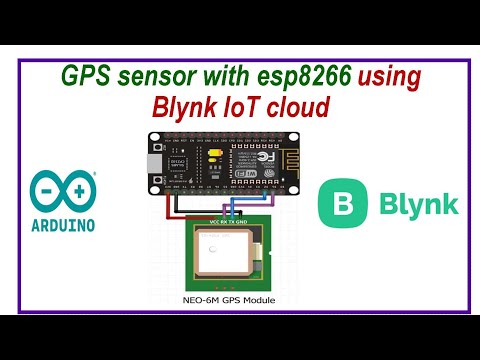
GPS sensor interface with ESP8266 using Blynk IoT cloud

   Circuit diagram: Source Code: #include <TinyGPS++.h> #include <SoftwareSerial.h> #define BLYNK_PRINT Serial #include <ESP8...